On this page
- What It Reads and Writes
- The Pipeline: Decode, Then Encode
- Stage 1: What the Browser Decodes for Free
- Stage 2: Why the Browser Only Writes Three Formats
- Filling the Gaps with WebAssembly
- Formats That Need No Codec At All
- Keeping the Tab Responsive
- Detecting the Real Format From the Bytes
- What Conversion Cannot Preserve
- Why Local Processing Is Worth the Engineering
- Format Reference
- The Open-Source Libraries Behind It
- Try It
Most online image converters work the same way: you upload a file, a server converts it, you download the result. Somewhere in the middle, your photo becomes someone else's file on someone else's disk.
The Image Converter never sends the file anywhere. It reads 11 formats and writes 10, and every one of those conversions happens inside your own browser tab.
This article is an introduction to that tool and an explanation of how it works — because the mechanism is what turns "we don't upload your images" from a promise into something you can verify yourself.
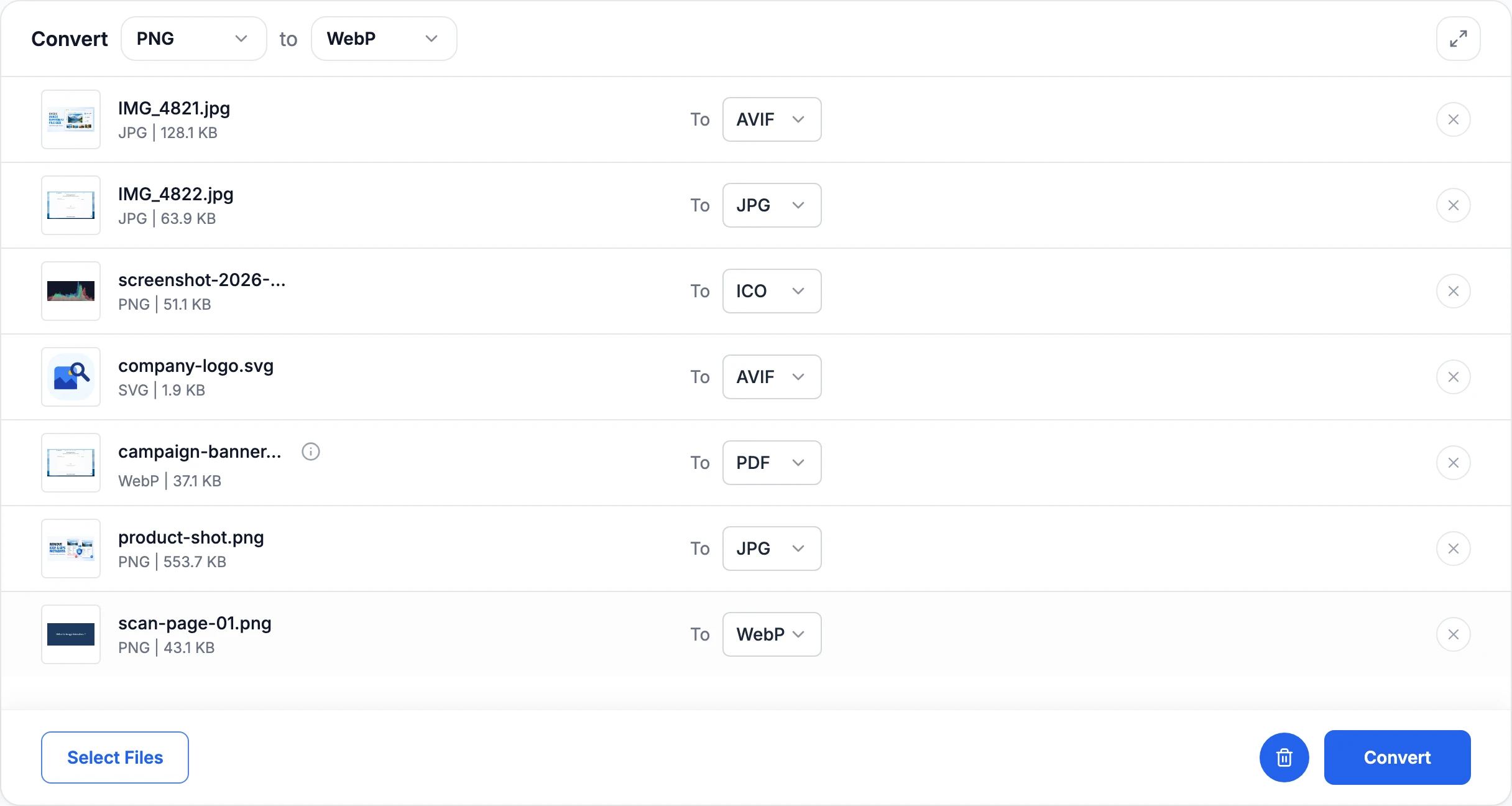 Seven files queued in the Image Converter, each row detected as JPG, PNG, SVG or WebP and each with its own target format
What It Reads and Writes
Eleven input formats, including three that no browser can decode on its own:
| Input | Notes |
|---|---|
| PNG, JPG, WebP, GIF, BMP, ICO | Handled by the browser's own image decoder. |
| SVG | Not a pixel format at all — the browser's renderer draws it, then it is rasterised. |
| AVIF | Decoded natively by current Chrome, Safari and Firefox. |
| HEIC / HEIF | The default format for iPhone photos, which Windows, older Android and most web forms reject. No browser decodes it natively. |
| TIFF | The hand-off format for scanners, print shops and archives, including LZW, PackBits and Deflate compression. |
| JPEG XL | A modern format with almost no viewer support yet, so decoding it is often the only way to see it. |
Ten output formats, of which browsers can only produce the first three:
| Output | Best for |
|---|---|
| JPG | Photographs and maximum compatibility. Transparency is flattened onto white. |
| PNG | Lossless with full transparency — logos, screenshots, line art. |
| WebP | Smaller than JPG or PNG at comparable quality, and every current browser displays it. |
| AVIF | The smallest mainstream web format — typically 20–50% under WebP at the same quality, with transparency. |
| JPEG XL | Excellent quality per byte and a strong archival choice, though browser support is still limited. |
| GIF | 256-colour indexed output with 1-bit transparency, for flat graphics and legacy tooling. |
| BMP | Uncompressed 24-bit bitmap for embedded and legacy software. |
| TIFF | Lossless RGBA for print and archival workflows. |
| ICO | A multi-resolution Windows icon (16/32/48/256 px) — the classic favicon container. |
| A single page sized to the image, ready to print, email or attach. |
Any input can go to any output. A few other things worth knowing before the explanation:
- Each file in a batch has its own output format. One drop can produce a PNG, an AVIF and a PDF at once, up to 30 files at a time.
- Formats are identified from the file's bytes, not from its extension or its reported MIME type — so a screenshot saved as
.jpgthat is really a PNG still converts. - SVG is rasterised at a minimum of 1024 px on its long edge rather than whatever size it happens to declare, which is what makes SVG to ICO and SVG to PNG produce usable icons.
- Results download individually or as one ZIP, and the tool reports the dimensions and the before/after file size for each.
The most-searched pairs have their own page in the converter library — for example HEIC to JPG, PNG to WebP, SVG to PNG, TIFF to PDF and TIFF to JPG — and the Image Converter handles every other pair too.
The Pipeline: Decode, Then Encode
Format conversion is never a direct translation. There is no code path that turns a PNG "into" an AVIF. Every conversion is two independent steps with raw pixels in the middle:
file bytes → [decoder] → RGBA pixels → [encoder] → file bytes
The middle stage is an array of bytes: four values per pixel — red, green, blue, alpha — left to right, top to bottom. A 320 × 200 image is 256,000 bytes at this stage regardless of whether it arrived as a 3 KB PNG or a 300 KB BMP.
This split is why the format list can be as long as it is. With 11 inputs and 10 outputs there are 110 possible conversions, but there is no need for 110 converters — a decoder is worth ten conversions and an encoder eleven. The work is additive rather than multiplicative.
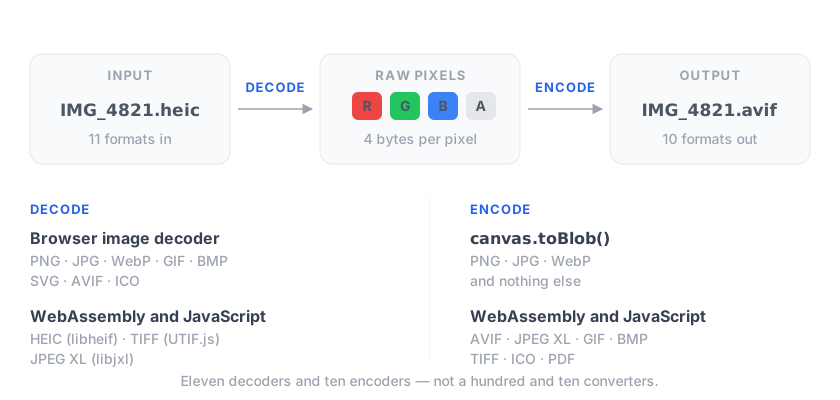 Diagram: file bytes are decoded to raw RGBA pixels by the browser or by WebAssembly, then encoded to new file bytes by the canvas or by WebAssembly
Stage 1: What the Browser Decodes for Free
Browsers ship decoders for the formats the web uses. Point an <img> element at a file and the browser's native, heavily optimised, memory-safe decoder does the work — then draw that element onto a <canvas> and read the pixels back out:
const image = await loadImageElement(file)   // browser decodes here
const canvas = document.createElement('canvas')
canvas.width = image.naturalWidth
canvas.height = image.naturalHeight
canvas.getContext('2d').drawImage(image, 0, 0)
const pixels = canvas.getContext('2d').getImageData(0, 0, canvas.width, canvas.height)
That single path covers PNG, JPG, WebP, GIF, BMP, SVG, AVIF and ICO. SVG is the interesting one: it is not a pixel format at all, so the browser runs its full renderer — paths, gradients, filters, even fonts — and hands back the rasterised result.
What the browser will not decode is HEIC (a patent-licensing decision, not a technical one), TIFF (never a web format), and JPEG XL (support has come and gone). Those three need a decoder we bring ourselves.
Stage 2: Why the Browser Only Writes Three Formats
Encoding is where browsers are much stingier. The only API is canvas.toBlob(), and the specification guarantees exactly one format — PNG. In practice every current browser also writes JPEG and WebP, and that is where the list ends. No browser encodes AVIF, and none encodes anything else.
There is a trap here worth knowing about: when you ask toBlob() for a format it cannot produce, it does not fail. It silently returns a PNG. So the returned blob's MIME type has to be checked against what was requested, or a user can end up with a file called photo.avif that is really a PNG:
const blob = await canvasToBlob(canvas, mime, quality)
if (blob.type !== mime) throw new Error(`This browser cannot encode ${mime}`)
Filling the Gaps with WebAssembly
The formats browsers refuse to handle all have mature open-source C or C++ implementations. WebAssembly lets those compiled libraries run inside the page at close to native speed, with no plugin, no install and — crucially — no network access of their own.
Three libraries cover the gaps:
- libavif (with the AOM encoder) writes AVIF. Google's Squoosh team compiled it to WebAssembly, and the jSquash project repackages those builds as installable modules. About 3.3 MB.
- libjxl reads and writes JPEG XL. Roughly 1.3 MB for the encoder, 0.8 MB for the decoder.
- libheif decodes HEIC and HEIF. This is the same library behind most desktop HEIC support.
These are large files, so none of them is part of the page. Each is fetched the first time you actually pick a format that needs it, then reused for every later file in the session. Convert PNG to JPG and you download nothing extra at all.
One deliberate constraint
WebAssembly can use multiple CPU cores, and the codec projects ship multi-threaded builds that are noticeably faster. Those builds need SharedArrayBuffer, which browsers only expose to pages that send Cross-Origin-Opener-Policy and Cross-Origin-Embedder-Policy headers. Turning those on isolates the page from most third-party resources and breaks the rest of the site.
So the converter uses the single-threaded builds. It is the right trade for a tool that has to load fast on a phone, and the difference is under a second for a typical photo.
Formats That Need No Codec At All
Not every format requires a compression library. Several are mostly a matter of writing a correct header and laying the pixels out in the order the format expects.
BMP is the clearest example. A 24-bit BMP is a 14-byte file header, a 40-byte info header, and then the pixels — as BGR rather than RGB, bottom row first, each row padded to a multiple of four bytes. That is the whole format:
view.setUint8(0, 0x42); view.setUint8(1, 0x4d)  // "BM"
view.setUint32(2, buffer.byteLength, true)      // file size
view.setUint32(10, 54, true)                    // where pixels start
view.setInt32(22, height, true)                 // positive = bottom-up rows
ICO is a directory format rather than an image format. An icon file is a small table of entries, each pointing at a complete PNG embedded inside it. So generating a favicon means rendering the source at 256, 48, 32 and 16 pixels, PNG-encoding each one through the canvas, and writing the 16-byte table entries that index them. One quirk: the width byte is a single byte, so 256 is stored as 0.
PDF is a document format that can embed a JPEG or PNG directly, with a page sized to match. pdf-lib handles the document structure. Images with transparency are embedded as PNG to keep the alpha channel; opaque ones as JPEG, which is far smaller.
GIF needs real work, but pure JavaScript is fast enough for it. The format allows only 256 colours, so the millions of colours in a photo have to be reduced to a palette first — gifenc does that with pairwise nearest-neighbour clustering, then maps every pixel to its closest palette entry and LZW-compresses the result. GIF transparency is a single palette slot, all-or-nothing, so semi-transparent pixels get snapped to fully opaque or fully clear.
TIFF reading and writing is handled by UTIF.js, the decoder from Photopea — about 100 KB of JavaScript for a format with decades of accumulated variations.
Keeping the Tab Responsive
JavaScript runs on one thread, and that thread also draws the page. AVIF encoding a 12-megapixel photo is several seconds of uninterrupted computation. Run it on the main thread and the tab freezes: no scrolling, no spinner animation, and eventually a browser "page unresponsive" prompt. Across a 30-file batch it would be minutes.
So the WebAssembly encoders run in a Web Worker — a genuine second thread. The main thread posts the pixel buffer across, the worker encodes, and the encoded bytes come back:
worker.postMessage({ op: 'encode-avif', data, width, height }, [data])
The array in the second argument is a transfer list: instead of copying those 40 MB of pixels, ownership moves to the worker. The transfer is near-instant, at the cost of the buffer becoming unusable on the sending side.
Decoding stays on the main thread, because that is where the browser's image decoder and the canvas live. The worker is created once and kept for the session, so the WebAssembly module compiles a single time no matter how many files you convert.
Measured on a 1200 × 800 photo: 804 ms to encode AVIF, with the main thread's animation frames never interrupted.
Detecting the Real Format From the Bytes
A file's name is a claim, not a fact. Screenshots get saved as .jpg, HEIC files arrive with no MIME type at all on several platforms, and a file that has been renamed will simply fail to decode with no useful explanation.
So every file is identified by its first kilobyte — its magic number:
| Format | Signature |
|---|---|
| PNG | 89 50 4E 47 |
| JPEG | FF D8 FF |
| GIF | GIF87a / GIF89a |
| WebP | RIFF … WEBP |
| TIFF | II 2A 00 or MM 00 2A |
| JPEG XL | FF 0A, or a JXL container box |
| BMP | BM |
AVIF and HEIC are the subtle pair: both are ISO base media containers, structurally the same as an MP4. Both begin with an ftyp box, and only the four-character brand inside it separates them — avif for one, heic/heix/mif1 for the other. Reading a couple of extra bytes is the difference between decoding a file natively in microseconds and loading 3 MB of WebAssembly for no reason.
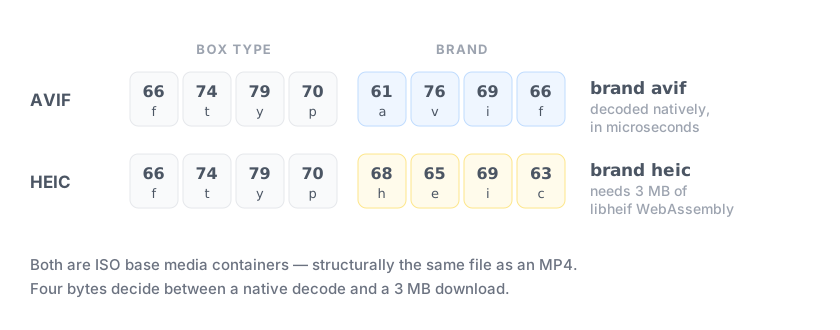 Diagram: the first twelve bytes of an AVIF and a HEIC file, identical except for the four brand bytes inside the ftyp box
The extension is still used, but only as a fallback when the bytes say nothing recognisable.
What Conversion Cannot Preserve
Being explicit about the losses is more useful than pretending there are none:
- Transparency disappears when the target has no alpha channel. JPG, BMP and JPEG-backed PDF composite transparent areas onto white — the converter does the compositing itself rather than leaving the ragged black edges a naive conversion produces.
- Animation is not carried across. GIF, animated WebP, AVIF sequences, HEIC bursts and multi-page TIFFs all convert their first frame or page only.
- Metadata does not survive. Because conversion goes through raw pixels, EXIF, GPS coordinates, IPTC and XMP are all dropped. That is usually a feature — but if you want to inspect what a file carries before it is gone, use the Image Metadata Viewer, and the Metadata Remover if you want to strip it while keeping the original format.
- Colour profiles are not embedded in the output. Wide-gamut sources are converted through the browser's decode into sRGB.
- Lossy-to-lossy is generational. JPG to WebP to AVIF re-compresses already-compressed data each time. Always convert from the best original you have.
Why Local Processing Is Worth the Engineering
Server-side conversion is easier to build. ImageMagick or libvips on a server handles every format in this article with one line of code and no bundle-size worries.
The cost is that the file has to leave your device. It travels over the network, lands on a disk, passes through logs and possibly a CDN cache, and its deletion is a policy rather than something you can check. For a holiday snapshot that hardly matters. For a scanned passport, a medical image, a contract, an unreleased product photo or an ID document, it matters quite a lot — and those are exactly the files people convert.
Local conversion makes the guarantee structural instead of contractual. The page loads, and after that the network is not involved. Open your browser's Network panel mid-conversion and you will see the codec download, then silence. No request carries your image, because there is no endpoint to carry it to.
Format Reference
| Format | Read | Write | Alpha | Lossy | Engine |
|---|---|---|---|---|---|
| PNG | ✓ | ✓ | ✓ | — | Browser |
| JPG | ✓ | ✓ | — | ✓ | Browser |
| WebP | ✓ | ✓ | ✓ | ✓ | Browser |
| GIF | ✓ | ✓ | 1-bit | ✓ | Browser / gifenc |
| BMP | ✓ | ✓ | — | — | Browser / built-in |
| SVG | ✓ | — | ✓ | — | Browser renderer |
| AVIF | ✓ | ✓ | ✓ | ✓ | Browser / libavif (wasm) |
| ICO | ✓ | ✓ | ✓ | — | Browser / built-in |
| HEIC | ✓ | — | ✓ | ✓ | libheif (wasm) |
| TIFF | ✓ | ✓ | ✓ | — | UTIF.js |
| JPEG XL | ✓ | ✓ | ✓ | ✓ | libjxl (wasm) |
| — | ✓ | via PNG | ✓ | pdf-lib |
The Open-Source Libraries Behind It
Every codec in the converter is open source, and credit belongs upstream:
| Library | Role | Licence |
|---|---|---|
| libavif / AOM via jSquash | AVIF encoding | Apache-2.0 / BSD |
| libjxl via jSquash | JPEG XL encode and decode | Apache-2.0 |
| libheif via heic-to | HEIC / HEIF decoding | LGPL-3.0 |
| UTIF.js | TIFF encode and decode | MIT |
| gifenc | GIF quantisation and encoding | MIT |
| pdf-lib | PDF output | MIT |
Try It
Pick a source and a target in the Image Converter, or jump straight to a pair:
- HEIC to JPG — iPhone photos that open anywhere
- PNG to WebP — smaller, web-ready files
- SVG to PNG — a vector rasterised at a usable size
- TIFF to PDF — a printable single-page document
- TIFF to JPG — scans that fit in an email
Need something other than a format change? The Image Compressor targets a file size, the Image Resizer changes pixel dimensions, and Image Size Finder reports dimensions, file size and metadata for a whole batch at once.
References & Further Reading
- 01.WebAssembly — Official Documentation and Standardswebassembly.org/
- 02.AV1 Image File Format (AVIF) Specificationaomediacodec.github.io/av1-avif/
- 03.High Efficiency Image File Format (HEIF / HEIC) — Nokianokiatech.github.io/heif/
- 04.Google WebP Image Format Specification & Guidesdevelopers.google.com/speed/webp
- 05.ISO Base Media File Format (ISOBMFF) Specificationwww.iso.org/standard/68960.html
- 06.HTMLCanvasElement.toBlob() — MDN Web Docsdeveloper.mozilla.org/en-US/docs/Web/API/HTMLCanvasElement/toBlob