On this page
- Quick Answer: Check an Image in Your Browser
- What Are Image Dimensions?
- What Is Image File Size?
- How to Read the Image Analysis Results
- How to Check Multiple Images at Once
- Common Problems the Measurements Can Reveal
- Image Dimensions vs Resolution vs File Size
- Frequently Asked Questions
- Check Your Image Now
Checking an image before you publish, print, email, or upload it can prevent blurry results, rejected files, and slow pages. The two measurements you usually need first are pixel dimensions and file size—but aspect ratio, DPI, and metadata can matter too.
This guide explains what each value means and shows how to inspect one image or a full batch privately in your browser.
Quick Answer: Check an Image in Your Browser
Use the free Image Size Finder to inspect an image without sending it to an image-processing server:
- Drag images into the drop zone, click Browse Files, or paste an image with Ctrl/Cmd+V.
- Read the width, height, file size, file type, aspect ratio, and available metadata.
- Expand a result for technical, EXIF, GPS, color, DPI, and histogram details.
- Sort a batch or export the results to CSV or JSON when needed.
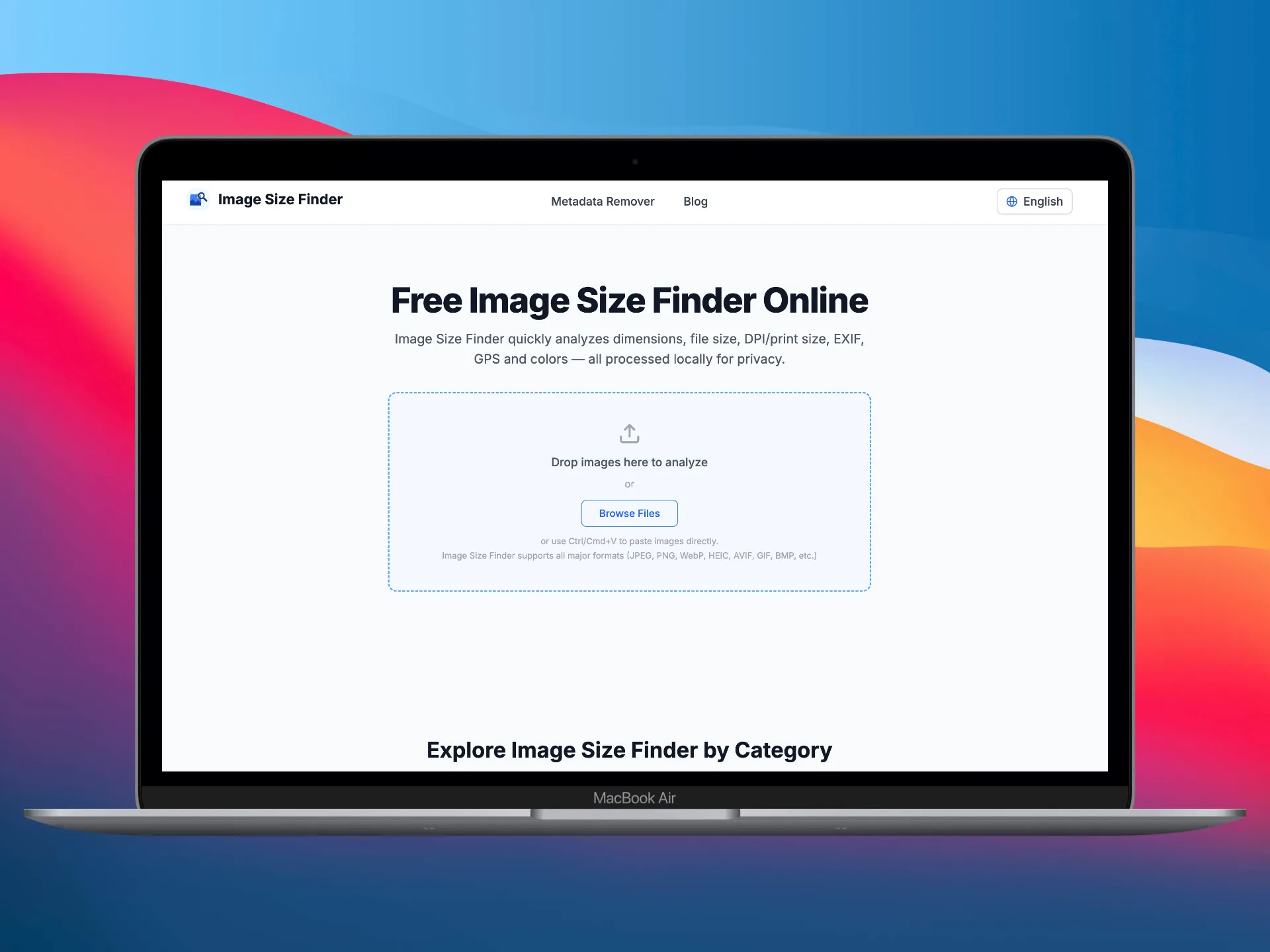 Image Size Finder upload area
The analysis happens locally in your browser. Your selected image files do not need to be uploaded to an image-analysis server.
What Are Image Dimensions?
Image dimensions describe the number of pixels across an image:
- Width is the horizontal pixel count.
- Height is the vertical pixel count.
- A value such as 1920 × 1080 px means 1,920 pixels wide and 1,080 pixels high.
Pixel dimensions determine how much visual information an image contains. A 300 × 300 image may be enough for a small avatar, while a wide website banner or detailed print usually needs more pixels.
Dimensions are not the same as the physical size shown on a screen. CSS, device pixel density, display scaling, and the application displaying the file can all change its visible size.
What Is Image File Size?
File size is the amount of storage the image uses, usually shown in bytes, KB, or MB. It affects upload limits, download time, email attachments, and website performance.
Two images with identical pixel dimensions can have very different file sizes because of:
- Image format, such as JPG, PNG, or WebP
- Compression quality
- Visual complexity and noise
- Transparency
- Embedded EXIF, XMP, ICC profile, or thumbnail data
- Animation and frame count
For example, a photographic PNG is often much larger than a JPG of the same dimensions because PNG uses lossless compression. File size alone does not tell you the image dimensions or quality.
How to Read the Image Analysis Results
After adding an image, the result identifies the essential properties first. Expand the card when you need deeper technical or metadata information.
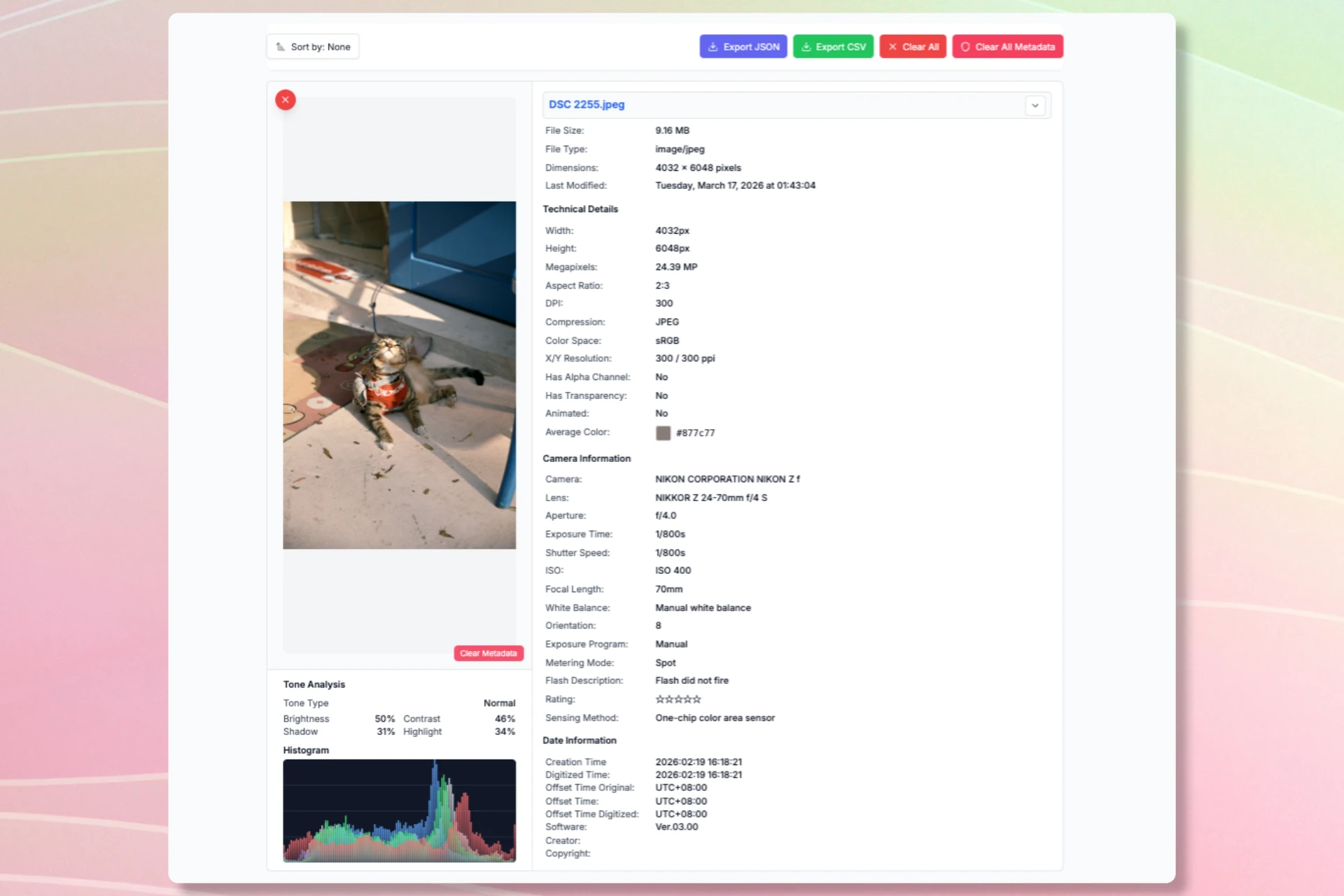 Image dimensions, file size, and metadata analysis result
Width and Height
Use pixel width and height to compare the file against a design specification or platform requirement. If the target calls for 1200 × 630 px, a different aspect ratio may be cropped even when the image has plenty of pixels.
Aspect Ratio
Aspect ratio describes the proportional relationship between width and height. Common ratios include:
| Ratio | Typical use |
|---|---|
| 1:1 | Square posts and profile images |
| 4:3 | Photography and presentations |
| 16:9 | Video thumbnails and wide displays |
| 9:16 | Stories, Reels, and vertical video |
Matching the required ratio helps avoid stretching, unwanted cropping, or padding.
File Type and MIME Type
The extension in a filename is only a label. Inspecting the detected file type helps confirm whether a file is actually JPEG, PNG, WebP, GIF, SVG, or another format.
DPI and Resolution
DPI metadata is mainly relevant to print. Pixel dimensions determine how much real image detail exists; changing only the DPI number does not create additional pixels.
As a rough example, a 3000-pixel-wide image printed at 300 DPI is about 10 inches wide. The same pixels printed at 150 DPI cover about 20 inches but appear less dense.
Metadata and Privacy
Photos may contain camera settings, capture time, software, copyright, and GPS coordinates. Inspect this information before sharing sensitive photos. If you find data you do not want to disclose, use the Metadata Remover before uploading the image elsewhere.
How to Check Multiple Images at Once
Batch inspection is useful for product catalogs, design exports, photography sessions, and website migrations.
Add multiple images in one selection, then:
- Sort by file size, width, height, filename, or date
- Compare dimensions and aspect ratios
- Identify unusually large files
- Export the visible analysis to CSV or JSON
- Remove individual results or clear the full batch
Batch processing depends on available browser memory, so very large files or unusually large batches may take longer on lower-memory devices.
Common Problems the Measurements Can Reveal
The Image Looks Blurry
The file may have fewer pixels than the display area requires, or a platform may be enlarging it. Compare its dimensions with the final rendered size.
The Upload Is Rejected
Check both the file-size limit and accepted format. A portal might require a JPG under 200KB even when the image dimensions are acceptable. Use the image compressor when you need a specific KB or MB maximum.
The Platform Crops the Image
The aspect ratio probably does not match the destination. Use the image size presets to resize with either centered cropping or fit-and-pad behavior.
The File Is Larger Than Expected
High dimensions, lossless formats, image noise, transparency, animation, or embedded metadata can increase file size. Converting a photo from PNG to JPG or WebP may reduce it substantially.
Image Dimensions vs Resolution vs File Size
| Property | What it tells you | Common unit |
|---|---|---|
| Dimensions | Number of pixels across the image | px |
| Aspect ratio | Relationship between width and height | 16:9, 1:1 |
| File size | Storage used by the image | KB, MB |
| DPI/PPI metadata | Intended print or display density | dpi, ppi |
| Megapixels | Total pixel count | MP |
These measurements are related, but none can replace the others. A complete check should start with dimensions and file size, then consider ratio, format, and metadata for the intended use.
Frequently Asked Questions
Can I check image dimensions without uploading the image?
Yes. Image Size Finder reads supported images locally in your browser. The file does not need to be sent to an image-processing server.
Does a larger file always have more pixels?
No. Compression, format, transparency, metadata, and visual complexity all affect file size. A smaller JPG can have more pixels than a larger PNG.
Can I check several images together?
Yes. Add a batch, review each result, sort it, and export the analysis to CSV or JSON.
What dimensions should my image be?
That depends on its destination. Follow the platform or design specification, and match both pixel dimensions and aspect ratio when possible.
Check Your Image Now
Open Image Size Finder, add an image, and review its dimensions, file size, aspect ratio, resolution, and available metadata in seconds—all within your browser.
References & Further Reading
- 01.W3C Portable Network Graphics (PNG) Specification (Third Edition)www.w3.org/TR/png-3/
- 02.Google WebP Image Format Guidedevelopers.google.com/speed/webp
- 03.
- 04.International Color Consortium (ICC) Profileswww.color.org/