On this page
- Quick Answer: Remove Photo Metadata Online
- What Are EXIF and GPS Metadata?
- Why Remove Metadata Before Sharing?
- Step 1: Inspect the Photo First
- Step 2: Remove EXIF, GPS, and Hidden Data
- Step 3: Download and Verify the Cleaned Photo
- Remove Metadata from Multiple Photos
- Remove Everything or Edit Specific Fields?
- Does Removing Metadata Reduce Image Quality?
- Metadata Removal Limits
- Frequently Asked Questions
- Clean a Photo Before Sharing
A photo can reveal more than the scene it shows. EXIF and related metadata may include the capture time, camera model, editing software, copyright fields, and—in some files—precise GPS coordinates.
Removing metadata before sharing a sensitive photo reduces unnecessary disclosure. This guide shows how to inspect the hidden information first, remove it locally, and verify the cleaned result.
Quick Answer: Remove Photo Metadata Online
Use the free Image Metadata Remover to clean one photo or a batch in your browser:
- Add the photos you want to check.
- Review the detected metadata and confirm whether GPS data is present.
- Choose Remove & Download for one photo or process the batch.
- Download cleaned files individually or as a ZIP archive.
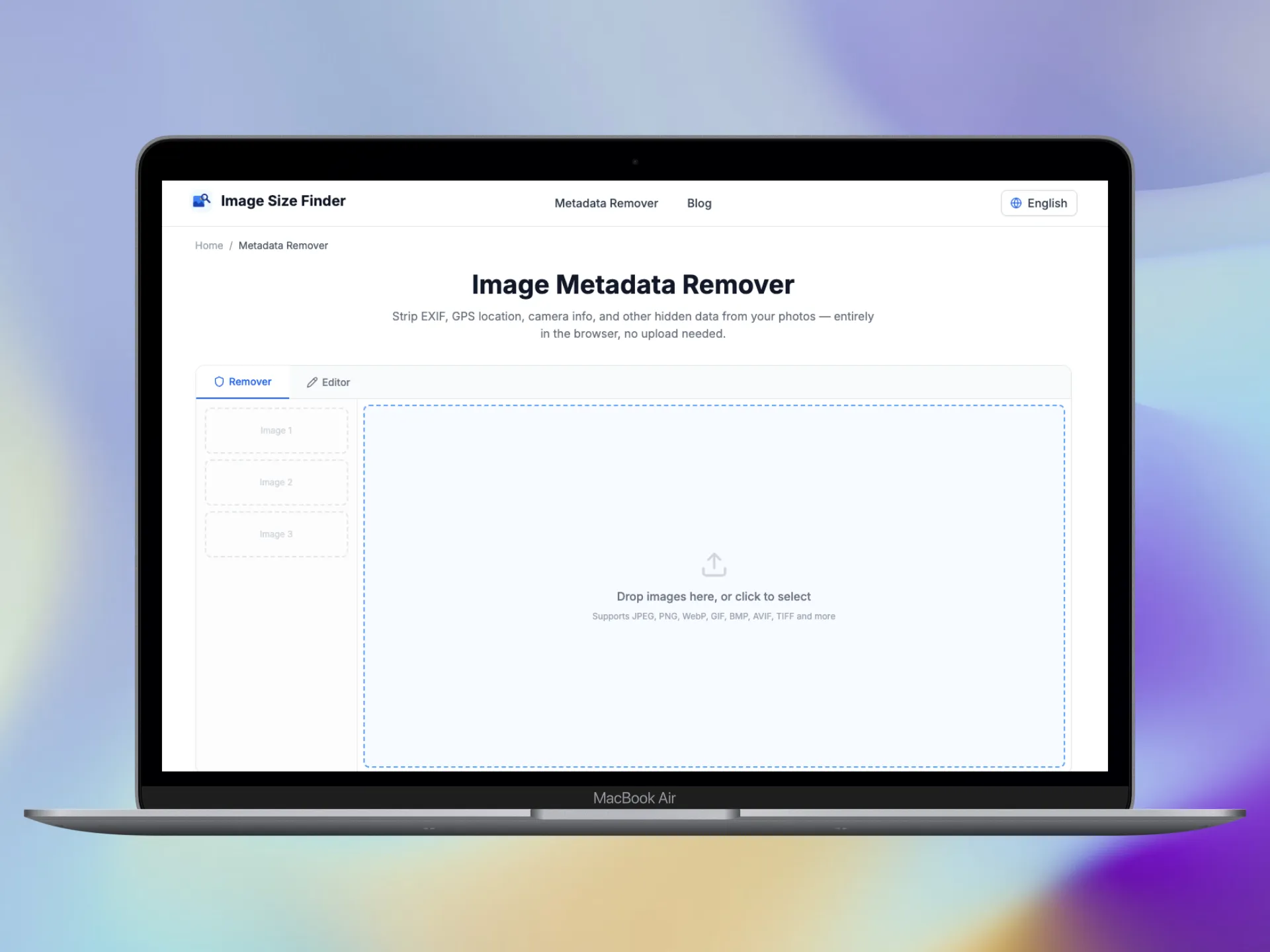 Upload photos to the metadata remover
The removal process runs locally. Your selected photos do not need to be uploaded to an image-processing server.
What Are EXIF and GPS Metadata?
EXIF (Exchangeable Image File Format) is a metadata standard commonly written by cameras and phones. Depending on the device and file, it can contain:
- Camera maker and model
- Lens and exposure settings
- ISO, aperture, shutter speed, and focal length
- Capture date and time
- Orientation and resolution
- Software and editing information
- GPS latitude, longitude, altitude, and timestamp
Photos may also contain IPTC editorial fields, XMP (Extensible Metadata Platform) processing information, ICC color profiles, embedded thumbnails, and vendor-specific maker notes. Using client-side parsers like ExifReader, these structures can be read and inspected directly in the browser.
GPS is not present in every photo. It depends on device settings, permissions, export software, and whether another service has already stripped the data.
Why Remove Metadata Before Sharing?
Metadata can be useful for organizing a photo library or documenting a shoot, but it may be unnecessary in a public copy.
Removing it can help reduce exposure of:
- A home, workplace, school, or travel location
- Capture times and routine patterns
- Camera and software fingerprints
- Personal author or copyright fields
- Editing history and embedded previews
Metadata removal does not make a photo anonymous. The visible image itself may reveal faces, signs, reflections, landmarks, documents, or other identifying details.
Step 1: Inspect the Photo First
Review the file before cleaning it so you understand what will be removed. The tool groups detected fields and reports whether GPS information is present.
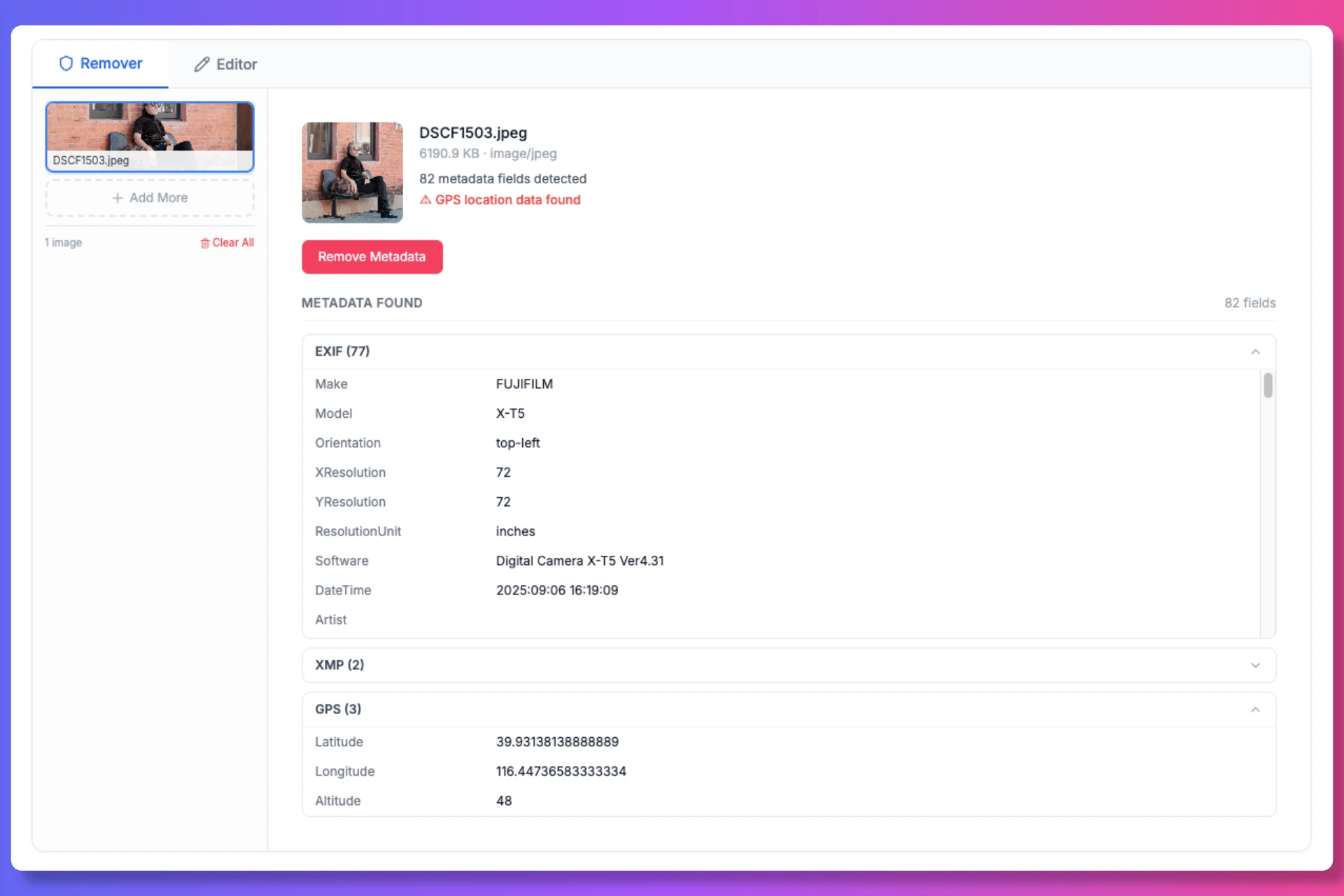 Review EXIF and GPS metadata detected in a photo
Look especially for:
- GPS latitude and longitude
- DateTimeOriginal and related timestamps
- Camera make, model, and lens
- Artist, creator, copyright, and credit
- Software and editing fields
- Embedded thumbnail or preview data
If you only need to correct specific ownership or date information, editing may be more appropriate than removing everything.
Step 2: Remove EXIF, GPS, and Hidden Data
Choose the removal action after reviewing the detected metadata. JPEG files can be cleaned without recompressing the image pixels, while other browser-renderable formats may be re-rendered to create a metadata-free output.
The cleaned file uses a new download name so the original remains available on your device. Keep the original when you still need capture details for your archive or photography workflow.
Step 3: Download and Verify the Cleaned Photo
After processing, download the cleaned photo or ZIP. For sensitive sharing, inspect the downloaded copy again before posting it.
Verification matters because:
- Different file formats store metadata differently
- Export tools may add new software or timestamp fields
- Messaging or editing apps may create a new copy
- A platform may retain an original upload even if viewers cannot see its EXIF
Use the cleaned download as the file you share—not the original selected photo.
Remove Metadata from Multiple Photos
Batch removal is useful when preparing event photos, product images, property listings, or a full social-media upload.
The workflow is:
- Add multiple images.
- Select photos from the side panel to review their fields.
- Run the batch removal action.
- Download cleaned results together as a ZIP.
Large batches use device memory and processing power. If the browser becomes slow, work in smaller groups.
Remove Everything or Edit Specific Fields?
Sometimes you want privacy; other times you need accurate attribution.
| Goal | Better choice |
|---|---|
| Remove GPS before public sharing | Remove metadata |
| Produce a minimal public copy | Remove metadata |
| Correct an incorrect capture date | Edit metadata |
| Add photographer credit or copyright | Edit metadata |
| Preserve an archival original | Keep the original unchanged |
The Metadata Editor supports selected JPEG EXIF fields such as capture date, artist, copyright, and software.
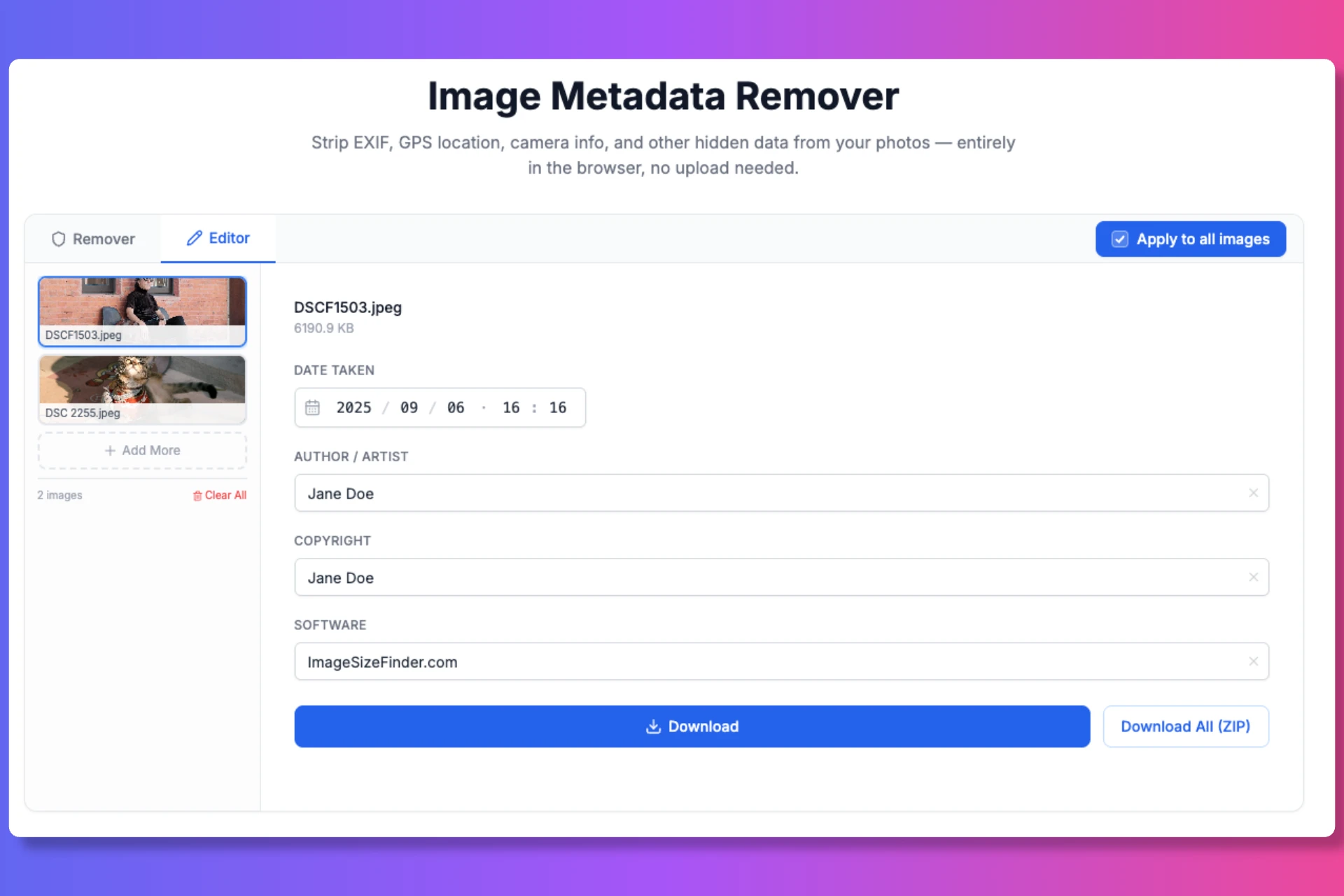 Edit selected EXIF fields instead of removing everything
Does Removing Metadata Reduce Image Quality?
For JPEG inputs, the tool removes supported metadata without re-encoding the image pixels, so the visual JPEG data is not recompressed during that operation.
For other formats, cleaning may require browser canvas rendering and a new encoded file. The output can therefore differ in file size or encoding details even when it looks the same.
Always keep an original copy if pixel identity, professional archiving, or evidentiary integrity matters.
Metadata Removal Limits
Metadata cleaning is one part of a privacy workflow, not a complete guarantee.
- The image content may reveal location or identity.
- Filenames can contain personal information.
- Cloud storage and messaging apps may retain account or upload records.
- Screenshots remove much metadata but may reduce quality and still expose visible details.
- Specialized or unsupported metadata blocks may vary by format and browser support.
For highly sensitive material, review the visible image, filename, sharing destination, account settings, and the cleaned file together.
Frequently Asked Questions
Can EXIF data include my exact location?
Yes. If geotagging was enabled, a photo may include GPS latitude and longitude, and sometimes altitude or a GPS timestamp.
Is EXIF metadata visible in the photo?
No. It is stored alongside the image data and normally requires an inspector or metadata tool to read.
Do social media platforms remove EXIF?
Many platforms remove metadata from publicly delivered copies, but their handling of original uploads varies. Removing sensitive metadata before uploading ensures it is not included in the file you send.
Should I remove copyright metadata?
Not always. Copyright and credit fields can be valuable. If location privacy is the only concern, consider keeping an archival original and creating a separate cleaned public copy.
Can I edit metadata instead of deleting it?
Yes. For supported JPEG files, use the Editor tab to change selected fields such as capture date, artist, copyright, and software.
Clean a Photo Before Sharing
Open the Image Metadata Remover, inspect the detected EXIF and GPS fields, remove unwanted metadata, and verify the cleaned download before sharing it.
References & Further Reading
- 01.ExifReader — JavaScript library for reading EXIF, IPTC, and XMP metadatagithub.com/mattiasw/ExifReader
- 02.EXIF Standard (CIPA DC-008 / JEITA CP-3451E)www.cipa.jp/
- 03.IPTC Photo Metadata Standard & Guidelineiptc.org/standards/photo-metadata/
- 04.W3C Geolocation Privacy & Security Considerationswww.w3.org/TR/geolocation/